Showing posts with label UFT. Show all posts

Tuesday, June 28, 2016

Learn VB Script Part 7

Using Loop Statements

Do.. Loop Statement

Do...Loop: Repeats a block of statements while a condition is True or until a condition becomes True.

Syntax:

 Do [{While | Until} condition]
   [statements]
   [Exit Do]
   [statements]
Loop

OR

Do
   [statements]
   [Exit Do]
   [statements]

Loop [{While | Until} condition]


Examples 1
Do...Loop

Counter = 1

    Do While Counter < 4

                        Total =Inputbox("Please enter the total marks in numbers")
                        
                                    If   Total < 50 Then
                                    
                                                MsgBox  "Fail"
                                    
                                    ElseIf  Total >=50 and Total <=60   then
                                    
                                                Msgbox "Second Class"
                        
                                    ElseIf  Total >60 and Total <80   then
                                    
                                                Msgbox "First Class"
                        
                                    ElseIf  Total >=80  then
                                    
                                                Msgbox "Distinction"
                        
                                    Else
                        
                                                Msgbox "Invalid Marks"
                                    
                                    End If

        Counter = Counter + 1

        Loop

Example 2

Counter = 1

            Do 

                        Total =Inputbox("Please enter the total marks in numbers")
                        
                                    If   Total < 50 Then
                                    
                                                MsgBox  "Fail"
                                    
                                    ElseIf  Total >=50 and Total <=60   then
                                    
                                                Msgbox "Second Class"
                        
                                    ElseIf  Total >60 and Total <80   then
                                    
                                                Msgbox "First Class"
                        
                                    ElseIf  Total >=80  then
                                    
                                                Msgbox "Distinction"
                        
                                    Else
                        
                                                Msgbox "Invalid Marks"
                                    
                                    End If

        Counter = Counter + 1

        Loop until Counter > 4

Example 3

   'Exit Do While loop

Do While Counter < 10

   Counter=counter + 1

   If  counter = 6 Then

      Exit Do

   End If

   MsgBox Counter

Loop


Example 4
'Exit Do Until loop

Do
    
   Counter=Counter + 1

     If  Counter = 6 Then

        Exit Do

     End If

   MsgBox Counter
   
Loop Until counter >11


Sunday, June 5, 2016

Learn VB Script Part 6

Using Conditional Statements

Select Case statement

Select Case: Executes one of several groups of statements, depending on the value of an expression. 

Syntax:

Select Case testexpression
   [Case expressionlist-n
      [statements-n]] . . .
   [Case Else expressionlist-n
      [elsestatements-n]]

End Select


Example: 
'Select Case


Colour =Ucase( Inputbox("Please enter the colour of your choice"))

          Select Case Colour
        
                                    Case   "RED"
        
                                                            MsgBox  "Colour selected is Red"
        
                                    Case   "BLUE"
        
                                                            MsgBox  "Colour selected is Red"
        
                                    Case   "GREEN"
        
                                                            MsgBox  "Colour selected is Red"
        
                                    Case   ELSE
        
                                                            MsgBox  "Invalid Colour"

          End Select

Monday, May 30, 2016

Learn VB Script - Part 4

Operators

Operators precedence

When several operations occur in an expression, each part is evaluated and resolved in a predetermined order called operator precedence. You can use parentheses to override the order of precedence and force some parts of an expression to be evaluated before others. Operations within parentheses are always performed before those outside. Within parentheses, however, standard operator precedence is maintained.


When expressions contain operators from more than one category, arithmetic operators are evaluated first, comparison operators are evaluated next, and logical operators are evaluated last. Comparison operators all have equal precedence; that is, they are evaluated in the left-to-right order in which they appear. Arithmetic and logical operators are evaluated in the following order of precedence.


ArithmeticComparisonLogical
DescriptionSymbolDescriptionSymbolDescriptionSymbol
Exponentiation^Equality=Logical negationNot
Unary negation-Inequality<>Logical conjunctionAnd
Multiplication*Less than<Logical disjunctionOr
Division/Greater than>Logical exclusionXor
Integer division\Less than or equal to<=Logical equivalenceEqv
Modulus arithmeticModGreater than or equal to>=Logical implicationImp
Addition+Object equivalenceIs
Subtraction-
String concatenation&


Tuesday, May 17, 2016

Learn VB Script Part 2

Variables


What is a variable?


A variable is a convenient placeholder that refers to a computer memory location where you can store program information that may change during the time your script is running. 


Declaring a Variable

Declare variables explicitly in your script using the Dim statement, the Public statement, and the Private statement.

Examples:

Dim length
Dim height

Declare multiple variables by separating each variable name with a comma

Dim radius,area,side


Option Explicit 

We can also declare a variable implicitly by simply using its name in your script. That's not generally a good practice because you could misspell the variable name in one or more places, causing unexpected results when your script is run. For that reason, the Option Explicit statement is available to require explicit declaration of all variables. The Option Explicit statement should be the first statement in your script.


Rules for variable declaration


Variable names follow the standard rules for naming anything in VBScript.
A variable name:
  • Must begin with an alphabetic character.
  • Cannot contain an embedded period.
  • Must not exceed 255 characters.
  • Must be unique in the scope in which it is declared.


Assign values to variables

The variable is on the left side of the expression and the value you want to assign to the variable is on the right

Example

height = 10
length = 20


Monday, May 16, 2016

Learn VB Script Part 1

My First program in VB Script


To run scripts using the Windows-based script host (Wscript.exe) Browse to the folder containing the script you want to run and double-click it. 


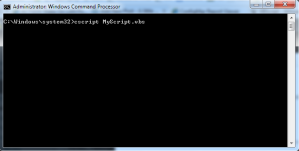
From a command prompt window

At the command prompt, type the name of the Windows Host executable file (Wscript.exe), followed by a space, then the full path name of the script you want to run. Be sure to include the file name extension of the script file. Press Enter to start the script.


Note
• Windows scripts are files with the following file name extensions: .wsf, .vbs, .js.
• If you double-click a script file whose extension has not been associated with Wscript.exe, the Open With dialog box appears. Select Wscript.exe, then select Always use this program to open this file type. This registers Wscript.exe as the default script host for files of this file type.
• You can use the Windows Script Host Settings dialog box to set global scripting properties for all scripts that Wscript.exe runs on the local computer 
• You can set properties for individual scripts. See Related Topics for information about how to do this.
• You can also use Windows Script Host to create .wsf script files, with which you can call multiple scripting engines and perform multiple jobs, all from one file.


Sample programs: 

Copy paste the below code in a note pad and save the files as .vbs in any directory of your personal computer and run the file as above.

Program 1:

'****HelloWorld******

MsgBox "Hello World !!!"

Program 2:

'**** Addition of two numbers***

Dim a,b

a = 1
b = 2

Msgbox "Addition of two number is "&a+b


Some more programs and full description of each program follows in next post


Thursday, May 12, 2016

What is Automation Testing ?


Manual testing is performed by a human sitting in front of a computer carefully executing the test steps. Automation Testing means using an automation tool to execute your test case suite.   The automation software can also enter test data into the System Under Test ,  compare  expected and actual  results and generate detailed test  reports.

Test Automation demands considerable investments of money and resources. Successive development cycles will require execution of same test suite repeatedly. Using a test automation tool it's possible to record this test suite  and re-play it  as required. Once the  test suite is automated,  no human intervention is required . This improved ROI of Test Automation.
Goal of Automation is to reduce number of test cases to be run manually and not eliminate manual testing all together.

Why Automated Testing?


Automated testing is important due to following reasons: 

  • Manual Testing of all work flows, all fields , all negative scenarios is time and cost consuming
  • It is difficult to test for multi lingual sites manually
  • Automation does not require Human intervention. You can run automated test unattended (overnight)
  • Automation increases  speed of test execution
  • Automation helps increase  Test Coverage
  • Manual Testing can become boring and hence error prone.


Which Test Cases to Automate?

Test cases to be automated can be selected using the following criterion to increase the automation ROI
  • High Risk - Business Critical test cases
  • Test cases that are executed repeatedly
  • Test Cases that are very tedious or difficult to perform manually
  • Test Cases which are time consuming


The following category of test cases are not suitable for automation:
  • Test Cases that are newly designed and not executed manually  atleast once
  • Test Cases for which the requirements are changing frequently
  • Test cases which are executed on ad-hoc basis.

Automation Process


Test tool selection

Test Tool selection largely depends on the technology the Application Under Test is built on. For instance QTP does not support Informatica.  So QTP cannot be used for testing Informatica applications. It's a good idea to conduct Proof of Concept of Tool on AUT


Define the scope of Automation

Scope of automation is the area of your Application Under Test which will be automated. Following points help determine scope:
  • Feature that are important for the business
  • Scenarios which have large amount of data
  • Common functionalities across applications
  • Technical feasibility
  • Extent to which business components are reused
  • Complexity of test cases
  • Ability to use the same test cases for cross browser testing

Planning, Design and Development 

During this phase you create  Automation strategy & plan, which contains following details-
  • Automation tools selected
  • Framework design and its features
  • In-Scope and Out-of-scope items of automation
  • Automation test bed preparation
  • Schedule and Timeline of scripting and execution
  • Deliverables of automation testing

Test Execution

Automation Scripts are executed during this phase. The scripts need input test data before there are set to run. Once executed they provide detailed test reports.  
Execution can be performed using the automation tool directly or through the Test Management tool which will invoke the automation tool.
Example: Quality center is the Test Management tool which in turn it will invoke QTP for execution of automation scripts. Scripts can be executed in a single machine or a group of  machines. The execution can be done during night , to save time.
Maintenance
 As new functionalities are added to the System Under Test with successive cycles, Automation Scripts need to be added, reviewed and maintained for each release cycle. Maintenance becomes necessary to improve effectiveness of Automation Scripts. 
Referances